Keepsee SMS reminder opt-in

These are pre-release development screens. Recurring reminder texts are not turned on yet. The screenshots use a test account, not a customer’s number. No sign-in is required to view this page.

The same signup exists in two products. Signing up in one does not enroll the other. Terms: https://keepsee.com/terms. Privacy: https://keepsee.com/privacy.

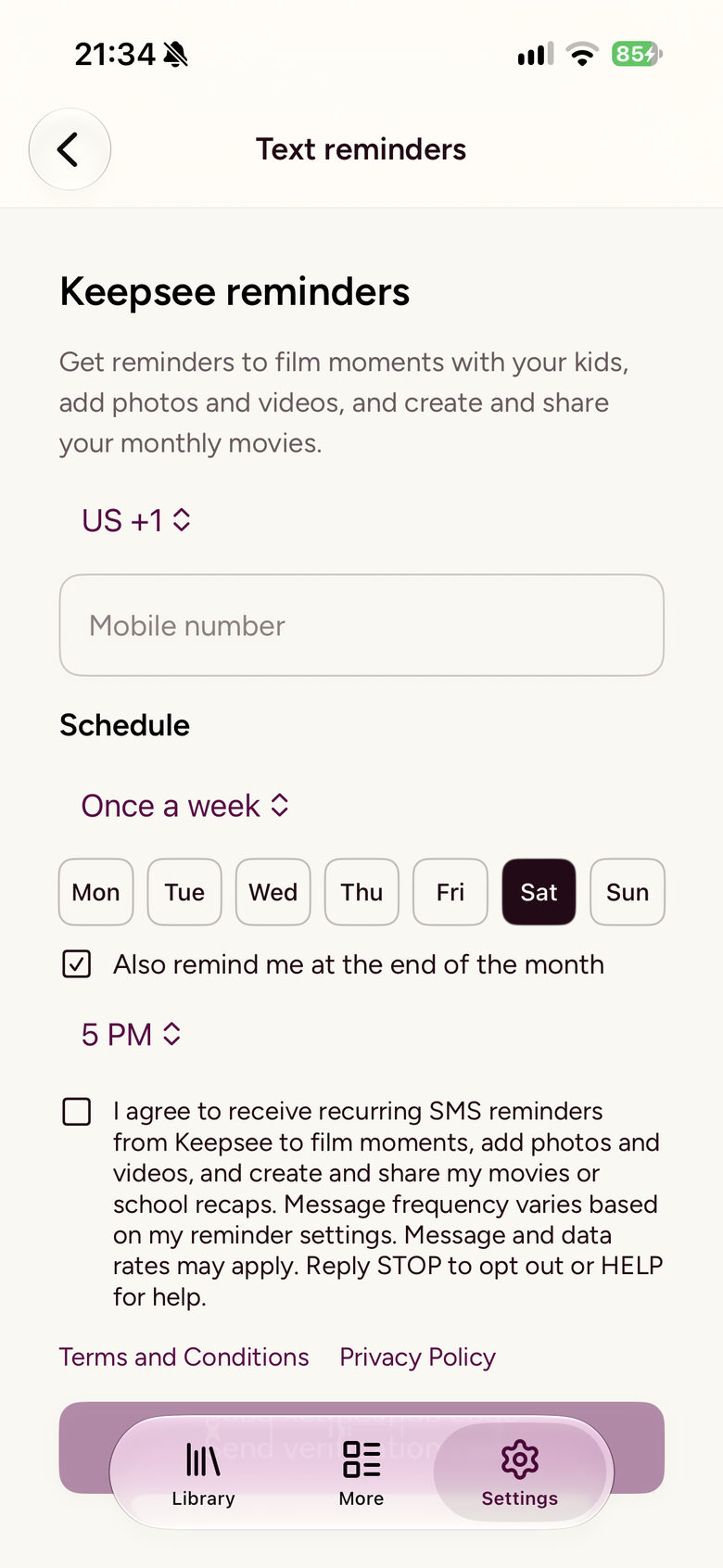
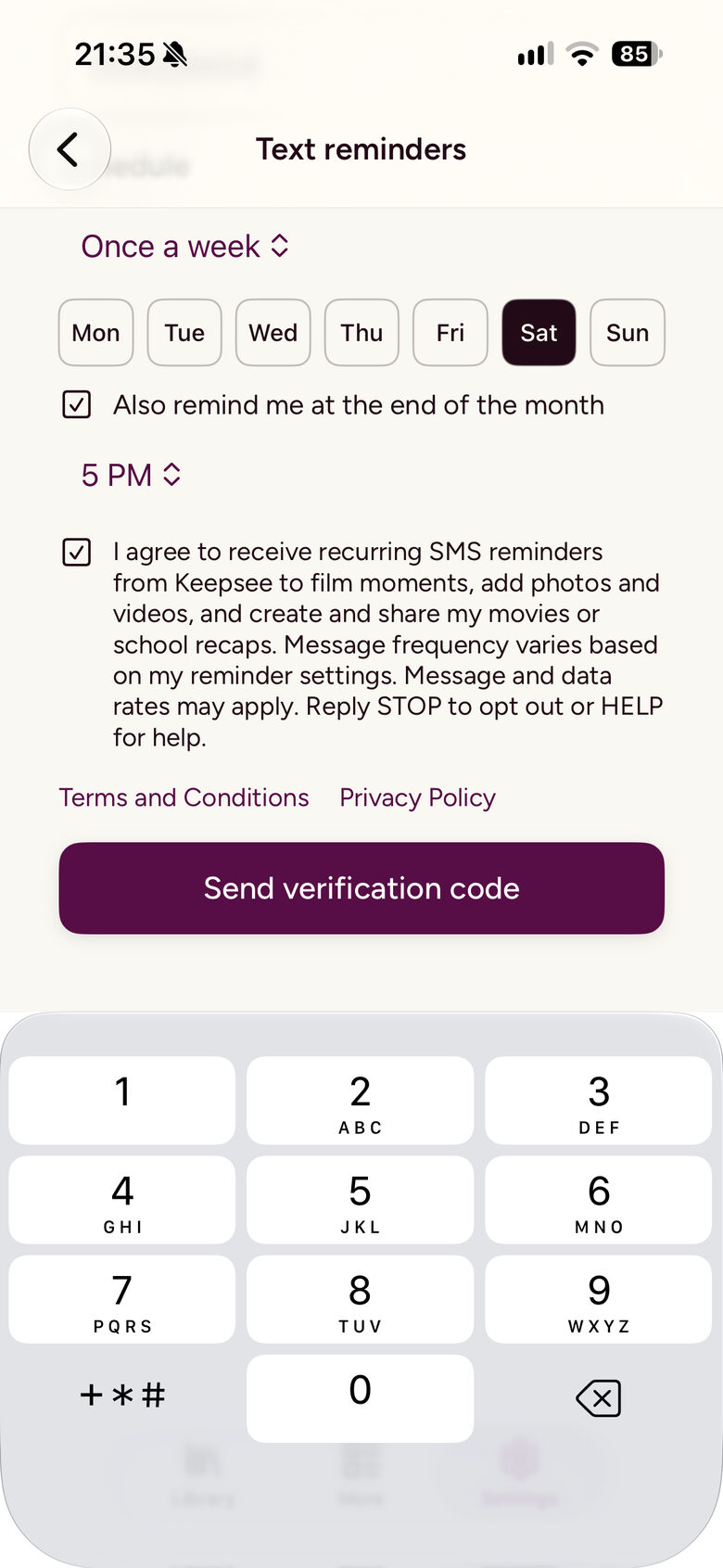
The following disclosure appears beside the optional SMS consent checkbox in both the Keepsee iPhone app and the principal website. The checkbox is unchecked by default.

I agree to receive recurring SMS reminders from Keepsee to film moments, add photos and videos, and create and share my movies or school recaps. Message frequency varies based on my reminder settings. Message and data rates may apply. Reply STOP to opt out or HELP for help.

Terms and Conditions · Privacy Policy

iPhone app

Open the Keepsee iPhone app with a test account. Go to Settings, then Text reminders. Text reminders are optional. The rest of the app works if this box stays unchecked.
1. Signup form before consent. The checkbox starts unchecked. The number field includes a country code, and the schedule is once a week plus a month-end reminder.
iPhone Text reminders form with the SMS consent checkbox unchecked
2. After the consent box is checked, the button says “Send verification code.”
iPhone form with the SMS consent checkbox checked and Send verification code enabled
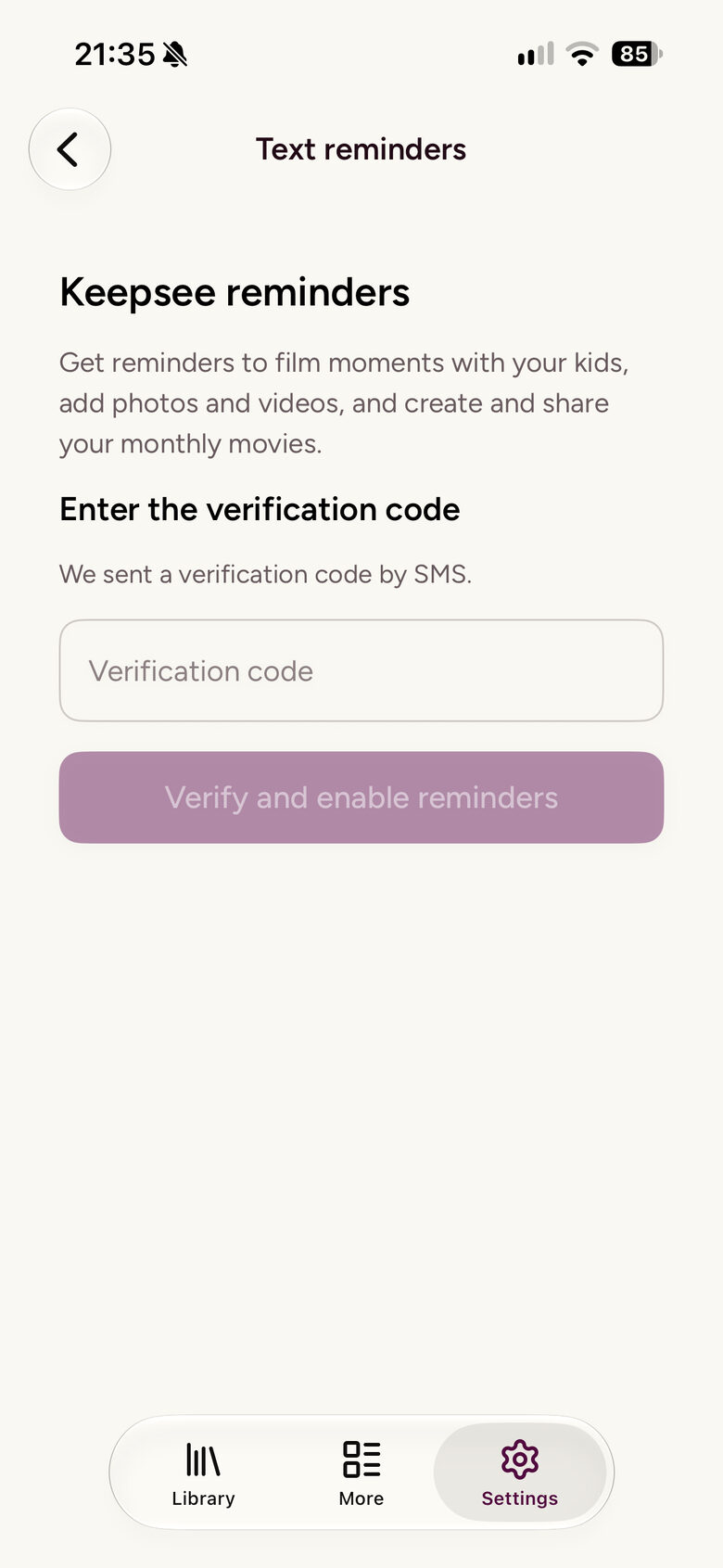
3. Verification-code screen, after the code is requested.
iPhone screen asking for the verification code
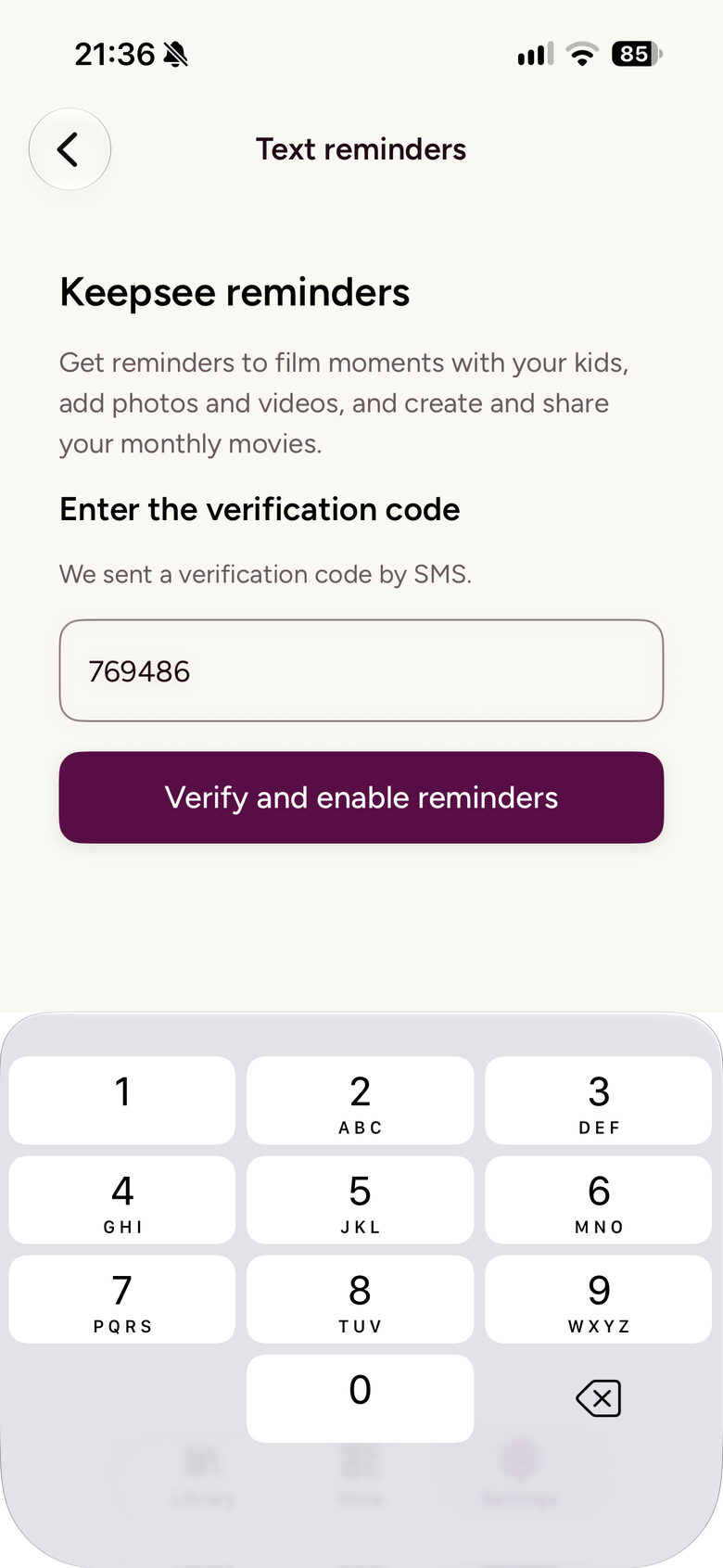
4. The code is entered. The button says “Verify and enable reminders.”
iPhone verification code entered, with Verify and enable reminders enabled
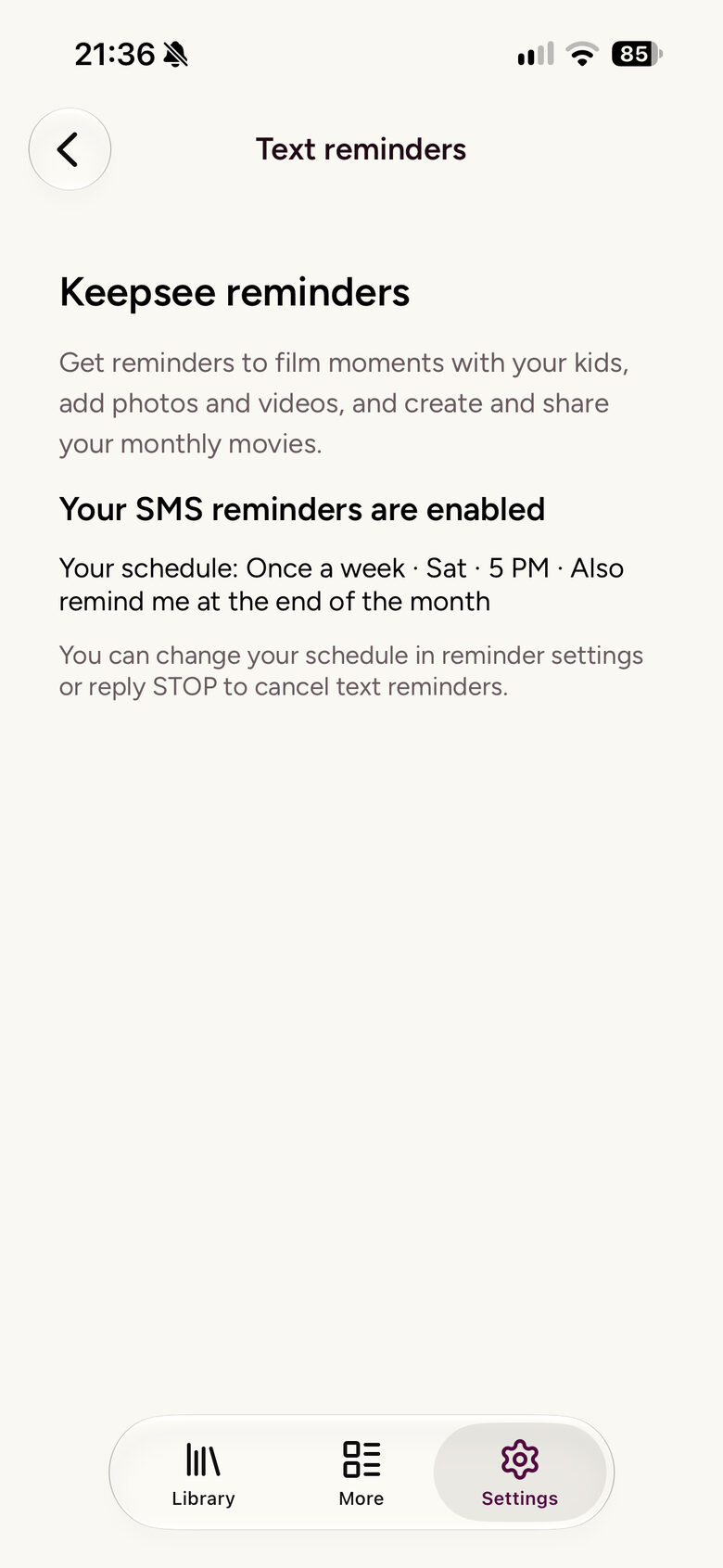
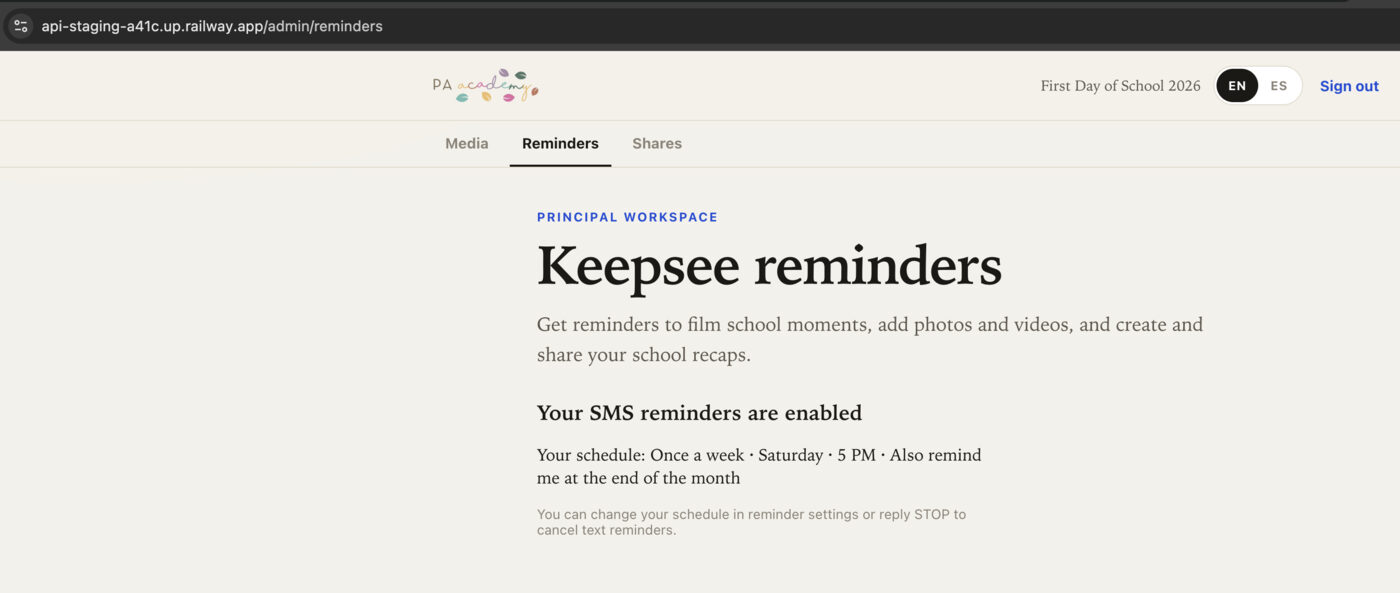
5. Enrollment confirmation. It shows “Your SMS reminders are enabled,” the selected schedule, and how to change or cancel.
iPhone confirmation that SMS reminders are enabled

Principal website

Open the principal site with a test principal account. Sign in, then open Reminders. Parents on this site are not offered this signup. A principal can keep using the site without texts.
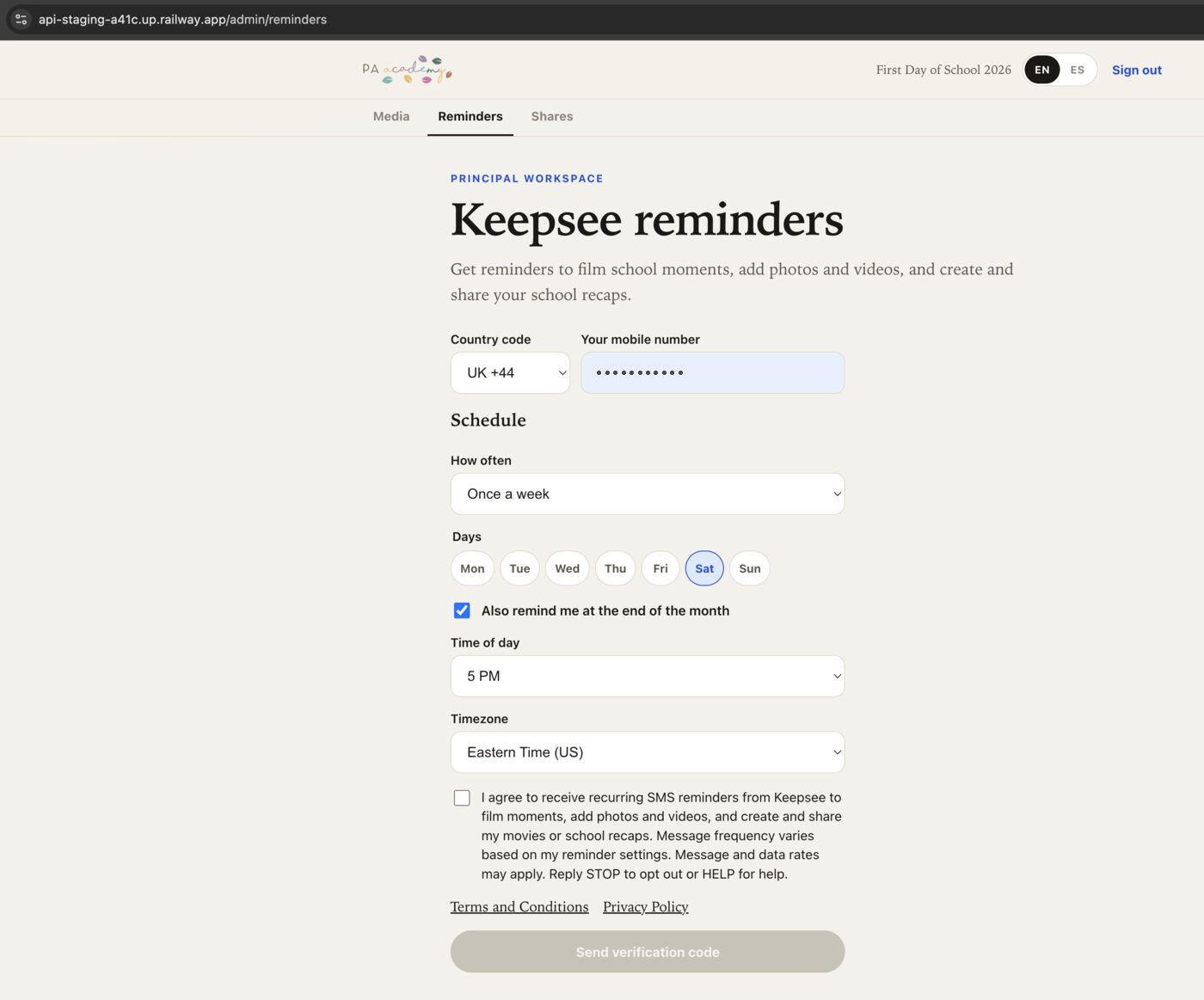
1. Signup form before consent. The checkbox starts unchecked, so “Send verification code” stays disabled. The number field includes a country code, and the schedule is once a week plus a month-end reminder.
Principal website reminders form with the SMS consent checkbox unchecked
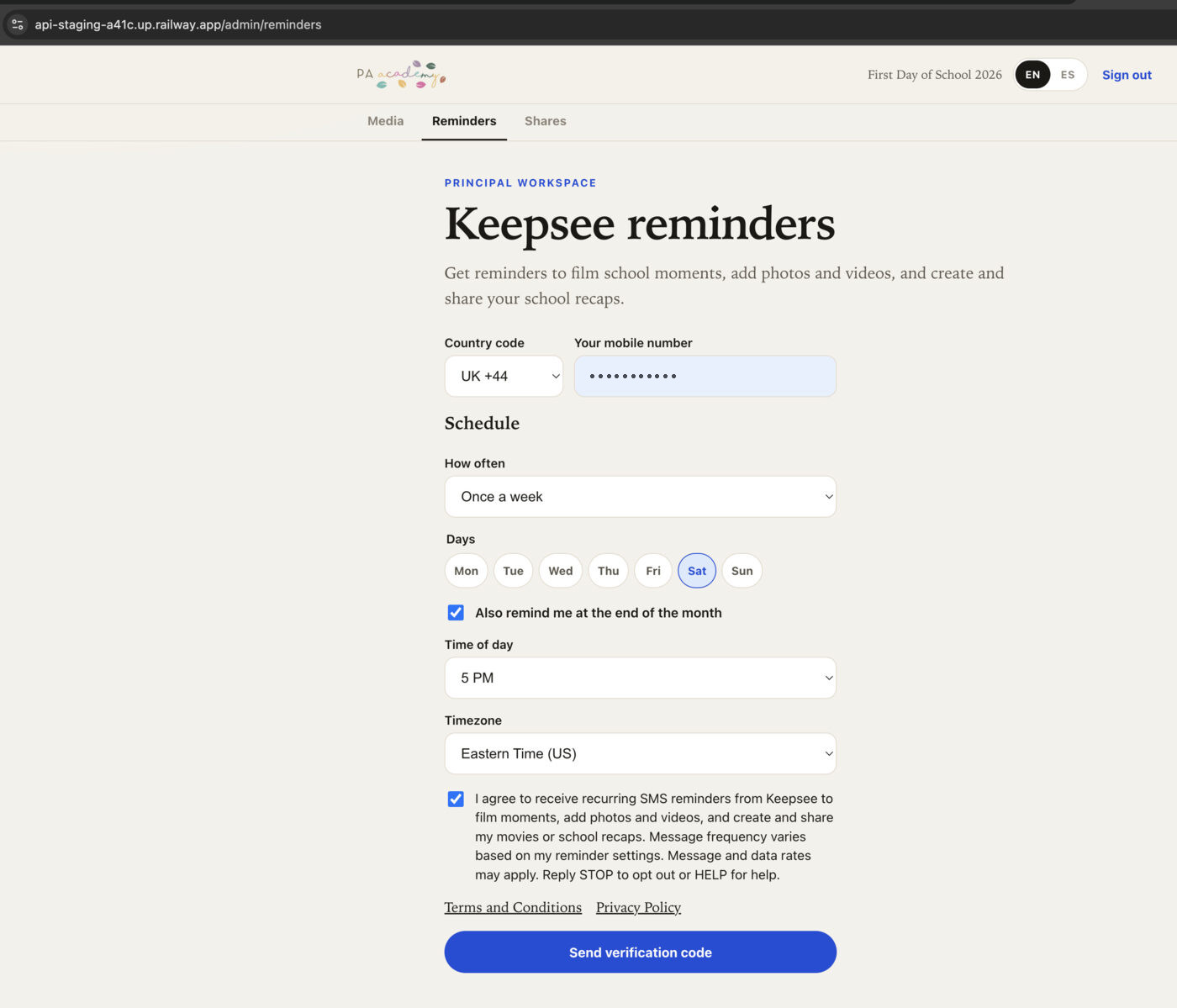
2. After the consent box is checked, “Send verification code” can be used.
Principal website form with the SMS consent checkbox checked and Send verification code enabled
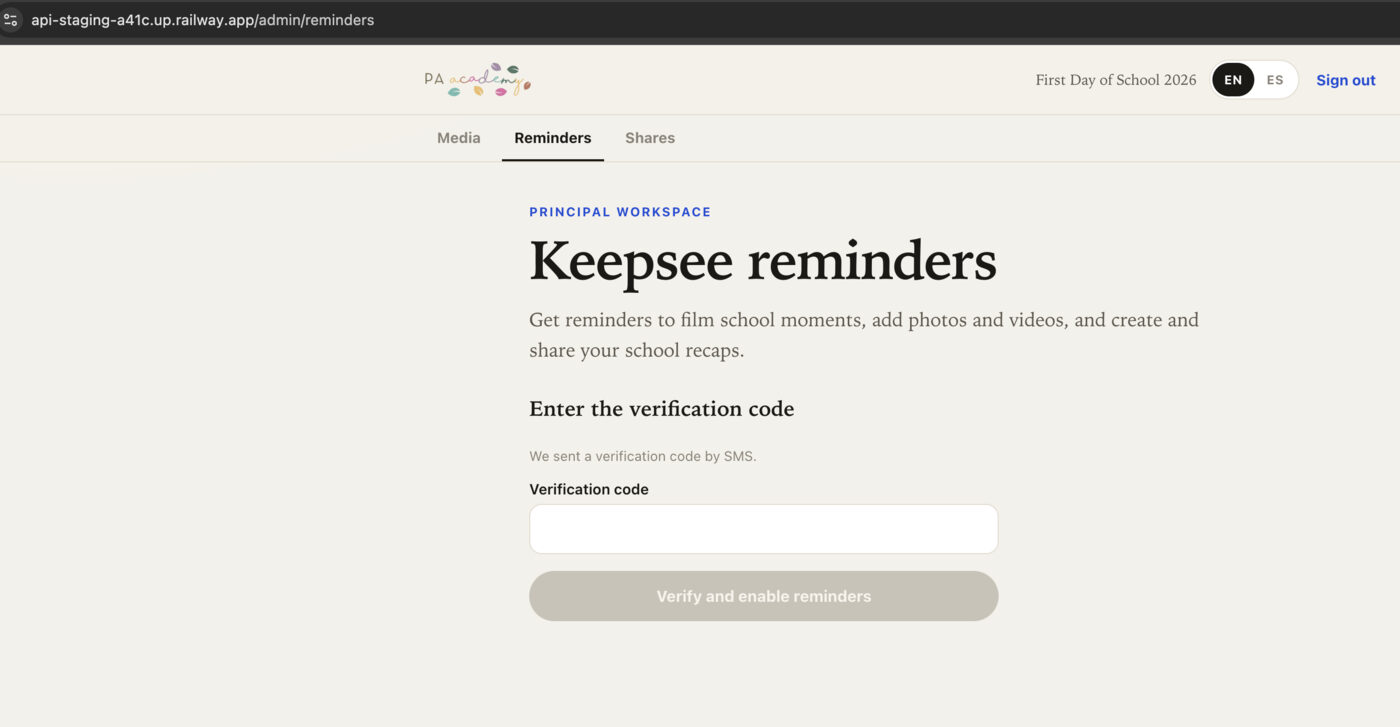
3. Verification-code screen.
Principal website screen asking for the verification code
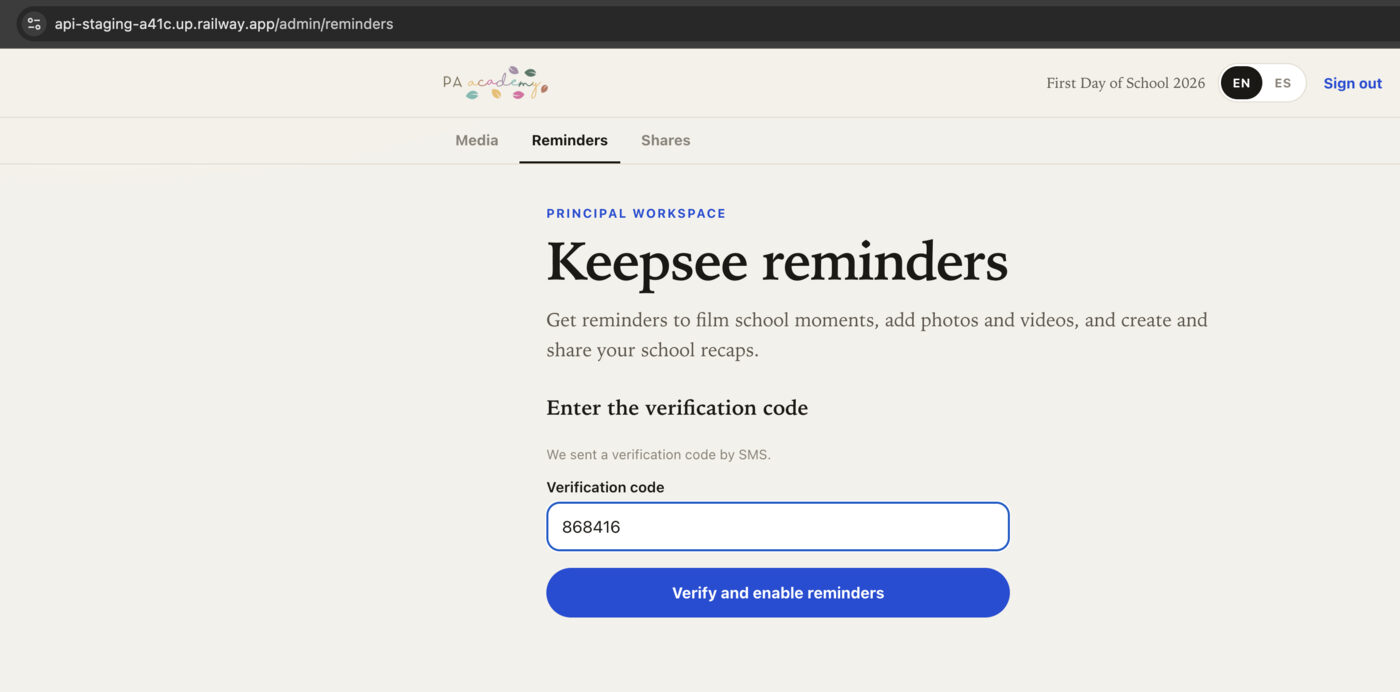
4. The code is entered. The button says “Verify and enable reminders.”
Principal website verification code entered, with Verify and enable reminders enabled
5. Enrollment confirmation. It shows “Your SMS reminders are enabled,” the selected schedule, and how to change or cancel.
Principal website confirmation that SMS reminders are enabled